

Opening and Saving
OpenPencil opens and saves .fig files, the same format Figma uses. It opens web pages and Pencil's .pen files too.
Open a Document
Press ⌘O and choose a file, or drag one onto the window. It opens in a new tab.
Open a Web Page
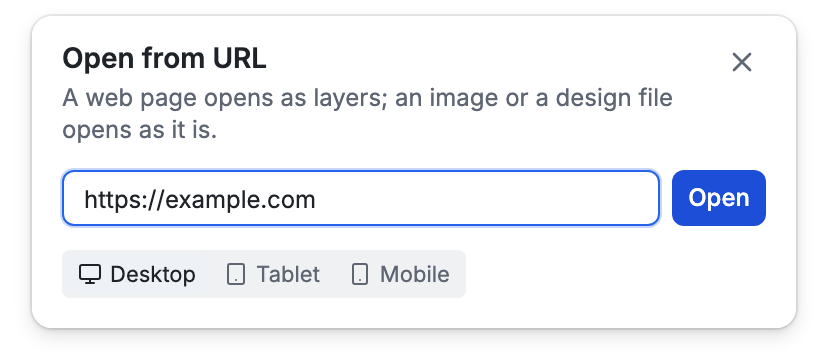
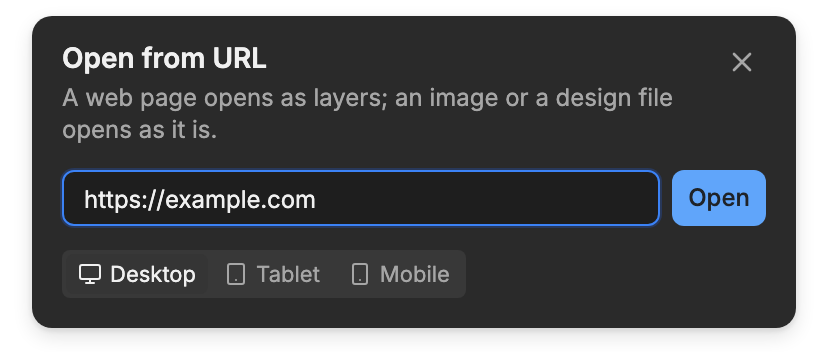
- Choose File → Open from URL.
- Enter the address.
- Choose the window size the page is laid out for.
- Click Open.
The page becomes layers you can edit. An address can also lead to an image or a design file.
The desktop app opens any address and runs the page's scripts first. If that stops at a cookie banner or a sign-in page, turn off Run the page's scripts. In the browser, only sites that allow it can be opened, and their scripts don't run.
To stop, close the tab.
Add a File to Your Design
Choose File → Place, or drag the file onto the canvas. You can place images, SVG files, and HTML pages.
Save
- Save with ⌘S updates the file you opened. Browsers that can't write to your files, such as Firefox and Safari, download it instead.
- Save as with ⇧⌘S lets you choose a new name or place.
Files in other formats, such as .pen, are saved as a new .fig file, and the original stays as it was. Saved files open in Figma.
Make a File Smaller
- Click an empty part of the canvas, so nothing is selected.
- In the Design panel, look for Document.
- Choose Smaller or Smallest.
Smaller files take longer to save. Fast saves the way Figma does, and Figma opens all three.